3 tips to keep kids & teens safer online
This Safer Internet Day, we’re sharing tips and best practices for online safety from Dr. Garth Graham.
Feb 10, 2026 [[read-time]] minute read
Feb 10, 2026 [[read-time]] minute read
Safer Internet Day is a great reminder that the digital world is a place for discovery, learning, and fun. By using tailored tools and having open conversations about digital ground rules, you can help your kids and teens build a healthy relationship with technology that lasts a lifetime.
Here are my top three tips for keeping kids and teens safer online.
Parents often tell me they want the ability to teach their kids how to consume content responsibly while keeping the final say on what’s appropriate. Depending on your child’s age, YouTube offers different environments—from YouTube Kids to teen accounts. You can also now set time limits for how long your teen can scroll on Shorts, with the ability to soon set the timer to zero, an industry first. And for parents of our youngest users on YouTube Kids, you can tailor your child’s experience by handpicking videos for your little one to watch.
You can set and edit the daily Shorts feed limit for your child's supervised account using the following steps in Family Center:
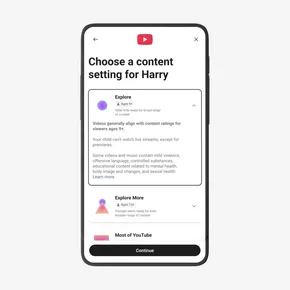
Our policies for younger audiences are significantly more rigorous to ensure that the videos being recommended meet our standards. When setting up a supervised kid account, you can choose content settings recommended for specific age groups, ensuring exploration stays within safe bounds.
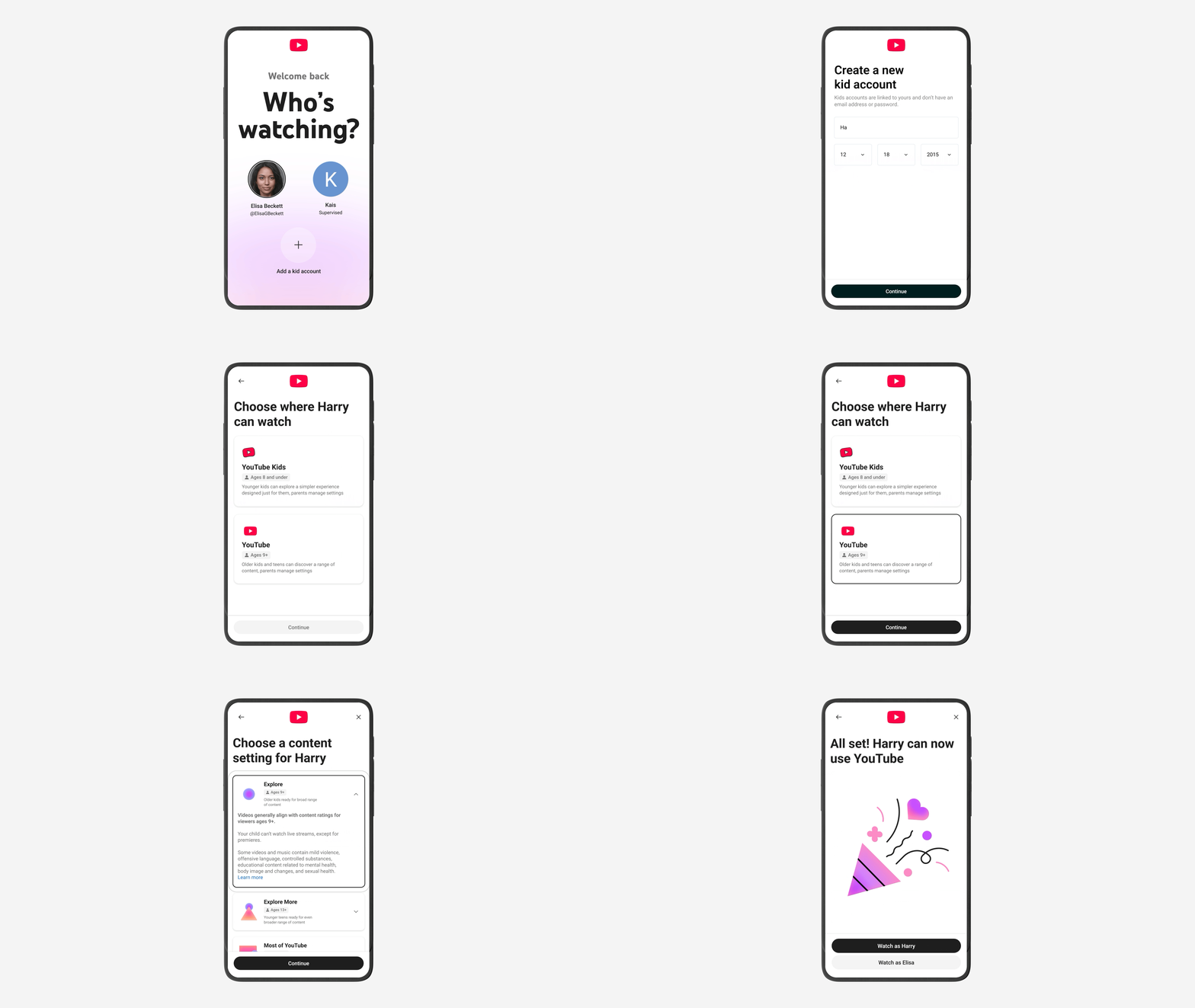
By simplifying how accounts are created, we can make it easier for parents to put kids into age-appropriate experiences from the start. That’s where our “Who’s Watching” feature comes in. This allows you to switch between accounts instantly, ensuring every family lands in their own age-appropriate experience. In Family Center, you can see and manage YouTube Kids accounts and supervised accounts for your kids and teens. You can also create new kids accounts.